


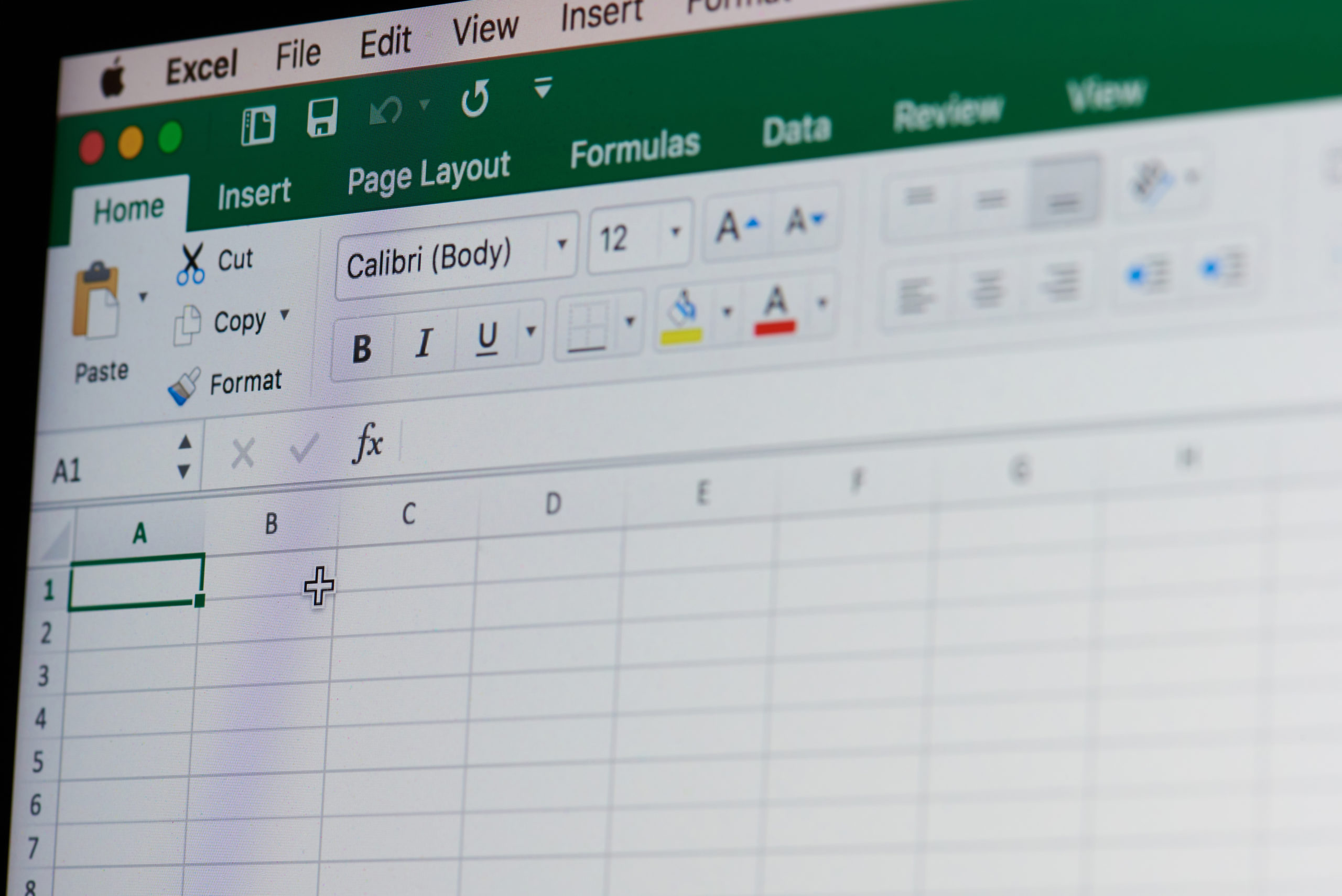
The world-famous spreadsheet program, Excel, comes as a part of both Microsoft Office and Office 365. The primary differences here is that MS Excel is an on-premise application, whereas Office 365 is a cloud-based application.
Don’t mix them up. Let’s know a little more about MS Excel.
Microsoft Excel is a spreadsheet tool that is extensively used in data analysis and documentation. The spreadsheet program consists of rows and columns. Each intersection between a column and a row is called ‘cell’, and each cell holds one information or data.
MS Excel is pervasive around the world. The three common and general purpose of using an MS Excel spreadsheet includes
Here’s a quick and handy guide for beginners about MS Excel basics. Read till the end and try to make your own spreadsheet.
How to create an MS Excel spreadsheet?

Step 1: Open MS Excel
Go to the ‘Start’ menu of your Windows device or ‘Application’ folder in your macOS. There you will find your MS Office toolset or Excel application. Open the MS Excel application. It will then flash on your screen, and you can choose your document.
* If you don’t have the application, you can download it for free from Microsoft Store.

Step 2: Click on Blank Workbook
After you have opened the Excel application, click on the ‘Blank Workbook’ option shown at your screen’s top left. What is a workbook?
Well, a workbook is a document that contains all your spreadsheets. Once you open the blank workbook, it creates a blank spreadsheet titled ‘sheet 1’.
* if you require more spreadsheets, you can add several by clicking o the ‘+’ sign beside ‘sheet 1’. Use the bottom tabs to switch between the spreadsheets.
In this step, you can also choose different templates already made for your assistance. If you click on the ‘More template’ option, you’ll see templates like an invoice, monthly budget, calendar, timesheet etc., to create your desired document in MS Excel.

Step 3: Understand the Features
This step is a bit critical. Here we will discuss the features you get in your Excel spreadsheet and how you can manage them.
Here you can name the columns and manually input your data. Each cell is called according to its column and row; for example, ‘A4’ is the highlighted cell.
- Formula bar: A formula bar will show you the information contained in a selected cell. For example, if you choose cell ‘A4’ and input the value 5, the formula bar will display the number 5.

Step 4: Enter Data
Now you have a standard idea, start manually inputting your data. MS Excel enables you to arrange information as you please. You can input anything and everything in your worksheet.
But it’s commonly practised that you should first name your columns. For example, column A is named ‘Name’, and column B is called ‘Math’. You can then input names and marks of the Maths exam as you want in the rows and design your worksheet.
The great thing about Excel is that you can delete or add columns and rows anytime. You can also edit these as you require. Another great feature is that you can find any information just by a quick search using the ‘Find & Select’ option. You can also resize your column’s width by placing the cursor on the column and drag it as much as you need to display your information correctly.
Step 5: Basic Formulas
For basics, you can use some formulas to calculate your data. You just need to select a cell and type ‘=(the type of calculation)’ and choose the data. For example, if you want to find out the summation of some data values, type ‘=SUM’ and select the data you want to use and press ‘Enter’. You will find the summation of those data.
These are some basic formulas for beginners,
As you keep practising, you’ll learn more complex formulas, but these should be enough for beginners.
Step 6: Save

After you’re done with inputting all your data and calculating if needed, you can now click on the ‘Save Icon’ and save your data. You can also click on the ‘File’ menu at the top left corner and select ‘save as’ to save your files.
You can select from a variety of options.
If you want to create a pdf from your Excel spreadsheet, just click on the ‘Save as’ option from ‘Files’. Then you’ll have to choose the ‘save as’ option and click on the ‘Recent’ option after that. Then you will see the ‘File type’ option; after clicking on it, you can just select the ‘PDF’ format from the drop-down menu.
Now you can easily make your own spreadsheet by using MS Excel. Give it a try.
0 responses on "How to Create an Excel Spreadsheet?"